



How to Write Google Ads Descriptions Under 90 Characters
90 characters is a brutal limit. Here's the formula PPC copywriters use to fit a value prop, social proof, and CTA without the last-minute panic rewrite.
 By Anirudha Published
TL;DR
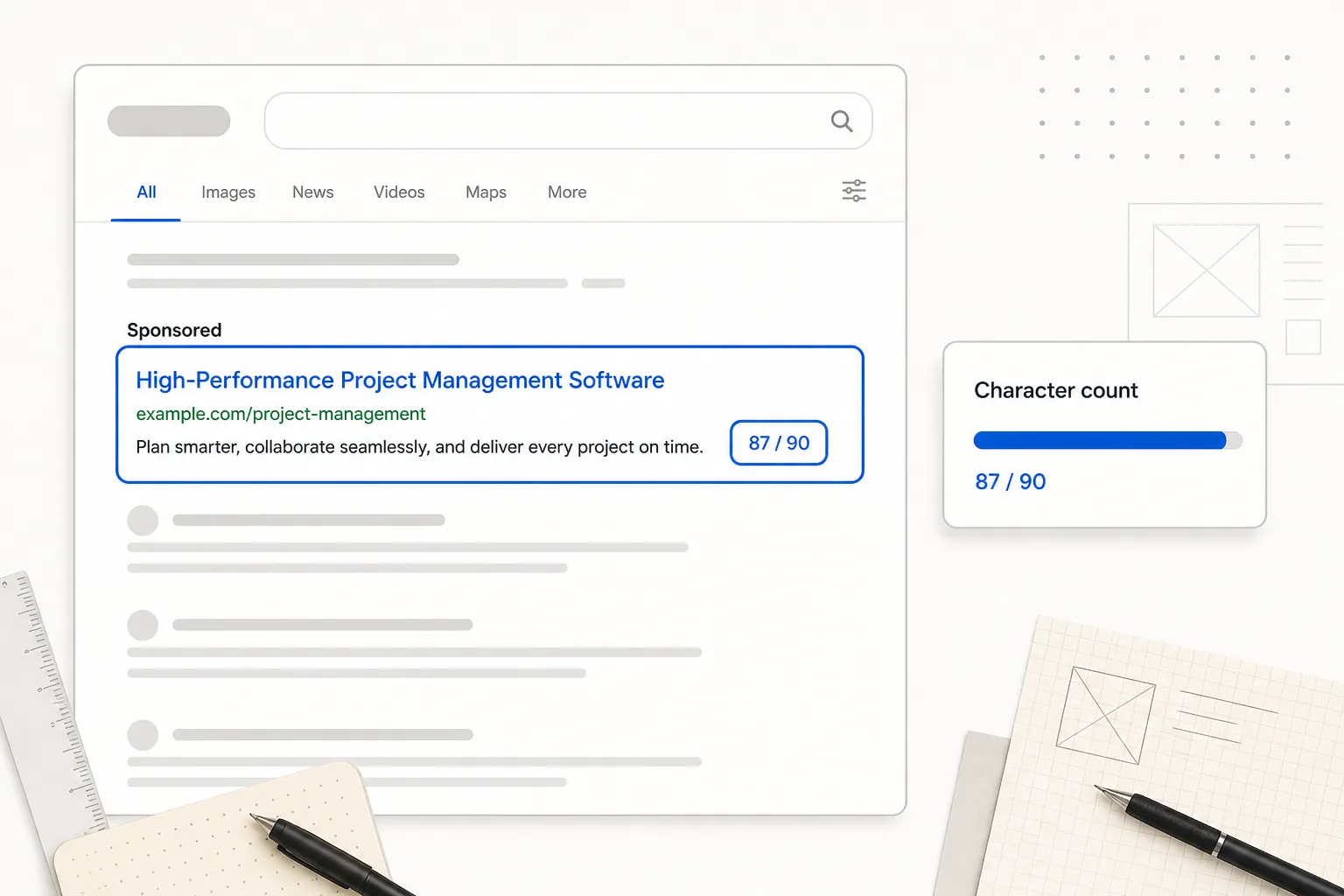
Google Ads description fields are capped at 90 characters each - that’s roughly one medium sentence, and it has to carry your value prop, a trust signal, and a call to action simultaneously. Generic filler phrases like “a wide range of comprehensive solutions” burn 40+ characters and move the click rate in exactly the wrong direction. The formula that works: [Value Prop, 30-45 chars] + [Social Proof, 20-30 chars] + [CTA verb, 10-20 chars]. Draft against a live counter - not inside the Google Ads dashboard - so you never have to mangle good copy in a panic. PostTruncate’s free Google Ads simulator enforces the 90-character cap, renders a pixel-accurate preview, and even measures headline pixel width the way Google’s actual renderer does.
The 94-character panic - and why I built a better way to draft
I’ll give you the short version of the most embarrassing thing that happened to me during a client campaign last year.
I’d spent a solid 20 minutes crafting what I was genuinely proud of: a tight, punchy description that opened with a specific ROI claim, dropped a star rating, and ended with a clean action verb. I pasted it into the Google Ads dashboard, clicked save, and got the error.
94 characters.
Four characters over the limit, deep inside the live editor with the client watching. What followed was the worst kind of copywriting: frantic deletions, grammar-wrecking compromises, a final line that read like a refrigerator manual. The original was gone.
That experience is why I built the Google Ads Preview tool on PostTruncate.com. If you draft your descriptions there first - where the counter is live, and the limit is enforced before you ever touch the real dashboard - that panic never happens.
But before we get to the tool, let’s talk about why writing Google Ads descriptions well is genuinely hard, and what the formulas are that actually fit.
Why 90 characters is a brutal constraint
Here’s the math that makes this feel impossible at first.
Google’s Responsive Search Ads (RSA) spec allows up to 4 descriptions per ad, each capped at exactly 90 characters. Google can show up to 2 descriptions simultaneously - which means your combined visible description space is at most 180 characters, split across two separate fields.
Now think about what you’re trying to communicate in those 90 characters:
- A specific benefit (what does the product do, and what measurable outcome does it deliver?)
- A trust signal (why should a stranger clicking an ad believe you?)
- A call to action (what do they do next, and what makes that step feel low-risk?)
That’s three distinct persuasive jobs in roughly the same space as a tweet. And unlike a tweet, this text is competing directly against other ads at the precise moment someone is searching with intent. Every character that doesn’t earn its place is actively reducing your click-through rate.
According to Google’s own internal data from August 2025, advertisers who improve their Ad Strength from “Poor” to “Excellent” see an average of 15% more clicks and conversions. The description field is one of the highest-leverage places to earn that improvement.
Why filler words destroy your CTR at this scale
When you have 3,000 characters - the LinkedIn post limit, for example - filler phrases are annoying but survivable. At 90 characters, they’re fatal.
Take a phrase like “a wide range of comprehensive marketing solutions for businesses of all sizes.” That’s 74 characters - 82% of your entire description budget -, and it has communicated exactly zero specific things. No outcome. No number. No reason to click.
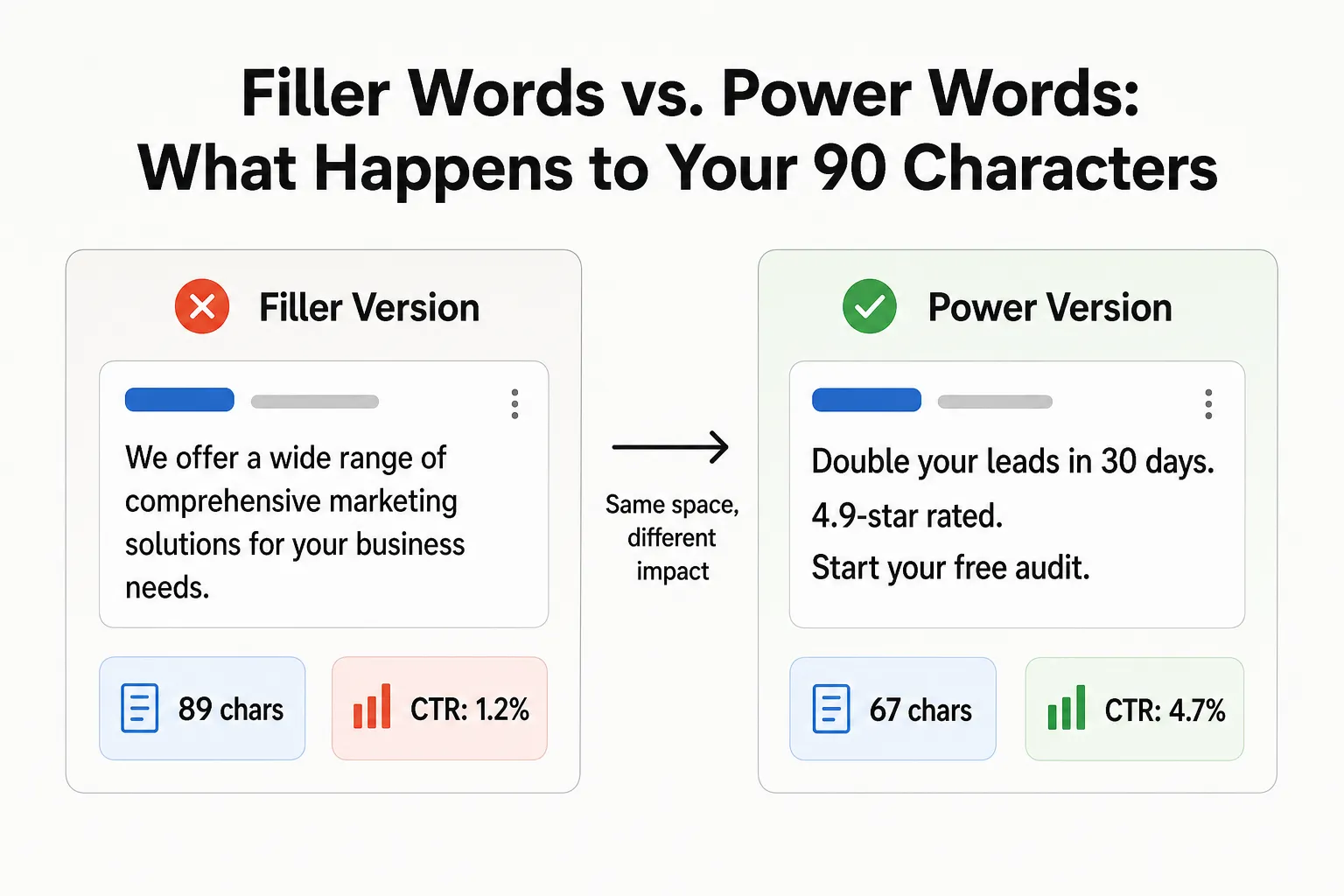
Comparison of a filler-heavy Google Ads description versus a power-word description showing the difference in character efficiency and simulated CTR
The failure mode has a pattern: filler words fill space with the feeling of substance while delivering none. Here are the phrases that should trigger an immediate delete in a 90-character field:
- “wide range of” (14 chars) - says nothing specific. Replace with the actual thing.
- “comprehensive solutions” (23 chars) - a $0 trust signal. Replace with a real number.
- “for businesses of all sizes” (27 chars) - a non-commitment that signals nothing. Replace with your actual target customer.
- “we offer” or “we provide” - the opener nobody asked for. Start with the outcome.
- “today’s fast-paced world” - this is 24 characters of 2012 SEO content. Delete immediately.
The reframe is simple: every character is a slot you’re either spending on something a searcher cares about or burning. At 90 characters, the cost of waste is very visible.
The 90-character formula
This is the structure that fits everything without the panic.
[Value Prop] + [Social Proof] + [CTA]
Each segment has a natural character budget:
| Segment | Role | Target length |
|---|---|---|
| Value Prop | Specific outcome, benefit, or differentiator | 30-45 chars |
| Social Proof | Rating, customer count, or guarantee | 20-30 chars |
| CTA | Action verb + low-friction qualifier | 10-20 chars |
| Total | 60-90 chars |
The formula isn’t prescriptive about punctuation or joining words - you can use periods, em-free hyphens, or short connectors like “and” to link segments as the copy needs. What matters is that all three jobs are filled.
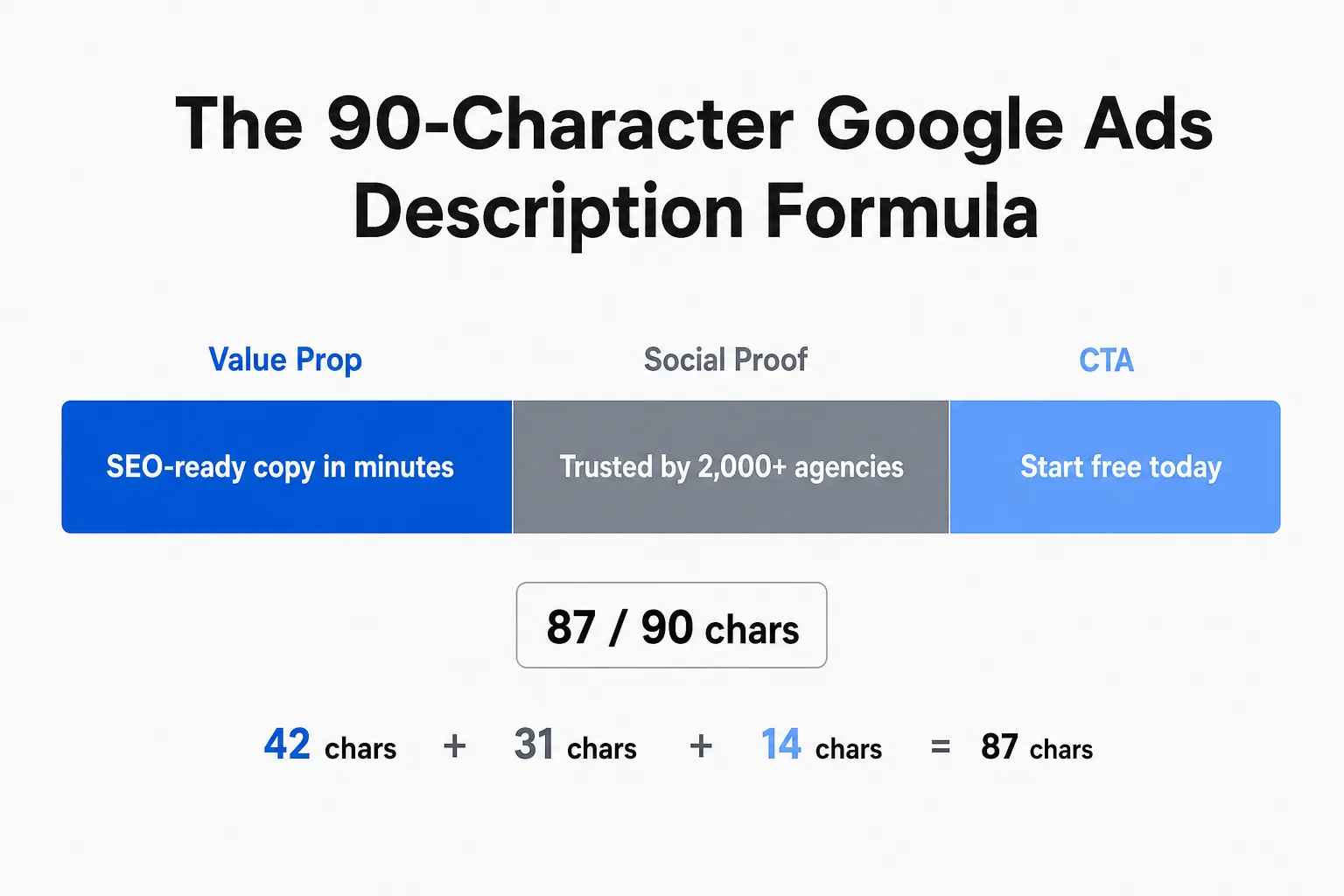
he 90-character Google Ads description formula infographic showing a horizontal bar divided into three colour-coded segments: Value Prop in blue, Social Proof in grey, CTA in light blue - with character counts labelled per segment
Formula in action: real examples with character counts
Here are four descriptions built on the same formula across different verticals. I’ve counted every character so you can use these as templates.
E-commerce (74 chars):
“Free shipping on $50+. Rated 4.8/5 by 3,400 buyers. Shop the sale today.”
- Value Prop: “Free shipping on $50+.” - 22 chars
- Social Proof: “Rated 4.8/5 by 3,400 buyers.” - 29 chars
- CTA: “Shop the sale today.” - 20 chars
- Total: 74 chars ✓
SaaS / PPC agency (75 chars):
“Automate PPC reports in 60 sec. 1,200+ agencies trust us. Get started free.”
- Value Prop: “Automate PPC reports in 60 sec.” - 32 chars
- Social Proof: “1,200+ agencies trust us.” - 26 chars
- CTA: “Get started free.” - 17 chars
- Total: 75 chars ✓
Local services (74 chars):
“Cut PPC wasted spend by 40%. 850+ clients. 5-star rated. Get a free audit.”
- Value Prop: “Cut PPC wasted spend by 40%.” - 28 chars
- Social Proof: “850+ clients. 5-star rated.” - 27 chars
- CTA: “Get a free audit.” - 17 chars
- Total: 74 chars ✓
B2B lead generation - near the limit (87 chars):
“Rank #1 for your keywords in 90 days. Backed by a money-back guarantee. Get the plan.”
- Value Prop: “Rank #1 for your keywords in 90 days.” - 37 chars
- Social Proof: “Backed by a money-back guarantee.” - 33 chars
- CTA: “Get the plan.” - 13 chars
- Total: 87 chars ✓
Notice that none of these examples is at 90. That’s intentional: leaving 3-5 characters of room means you can adjust a word or swap a number without triggering the limit. Think of 87 as your practical ceiling, not 90.
Writing the value prop under 45 characters
This is where most descriptions go wrong. The temptation is to hedge - “help your business grow and scale” - because specificity feels risky. Specificity is actually what drives CTR. Here are the moves that work within the character budget:
- Outcome + timeframe: “Rank #1 for your keywords in 90 days.” (37 chars) - a specific promise with a specific timeline
- Problem + percentage: “Cut PPC wasted spend by 40%.” (28 chars) - specific pain, specific relief
- Feature + time: “Automate PPC reports in 60 sec.” (31 chars) - a specific task eliminated in a specific amount of time
- Free modifier: “Free shipping on $50+.” (22 chars) - the shortest value prop in any vertical, and often the highest-CTR one
Social proof is where copy usually bloats, because writers try to include everything. You only need one credibility signal, and it should be the most specific one you have:
- “Rated 4.9/5 by 1,200 clients.” - 30 chars
- “850+ agencies trust us.” - 23 chars
- “Money-back guarantee.” - 21 chars
- “G2 Leader, 3 years running.” - 27 chars
- “As seen in Forbes.” - 18 chars
If you don’t have a review count or a recognisable trust badge yet, a guarantee works just as well. “Money-back guarantee” is 20 characters and carries a conversion lift that most review scores can’t match.
One thing most guides miss: pixel width, not just character count
Here’s the part of Google Ads description writing that almost nobody talks about, because it only becomes obvious when you see an ad break silently.
The 30-character headline limit is only half the constraint. Google renders headlines in a row separated by vertical bars inside a roughly 600px-wide desktop container. Three headlines that each pass the 30-character check can still overflow that container - and when that happens, Google drops the trailing headline rather than wrap it.
The width issue doesn’t affect descriptions directly (they don’t appear in the same pixel-constrained header row), but it does affect the overall ad structure: if your Headline 3 consistently gets dropped because it’s physically too wide, you lose the third slot entirely even if you’re under 30 characters.
A 28-character all-caps headline can be physically wider than a 30-character lowercase one. “MAXIMIZE YOUR PAID ROI” (22 chars) takes up more horizontal pixels than “maximise your paid roi now” (26 chars).
PostTruncate’s Google Ads Preview tool measures this using an HTML5 canvas - the same engine a browser uses to paint text in Arial - so you can see exactly when a headline would overflow the container and get dropped. It’s the only free tool I’ve found that handles this correctly rather than trusting the raw character count.
Draft here, paste there - how to never panic again
The workflow that eliminates the 94-character panic entirely:
- Draft in PostTruncate - paste or type your description into the Google Ads simulator. The description field enforces the 90-character cap live as you type. The counter turns red the moment you hit the limit.
- Check the live preview - the simulator renders a real-looking ad in the panel below. You can see exactly how the description reads alongside your headline and display URL.
- Paste into Google Ads - copy the description. You know it’s under 90 characters because the tool just enforced that. You paste it once. It saves. Done.
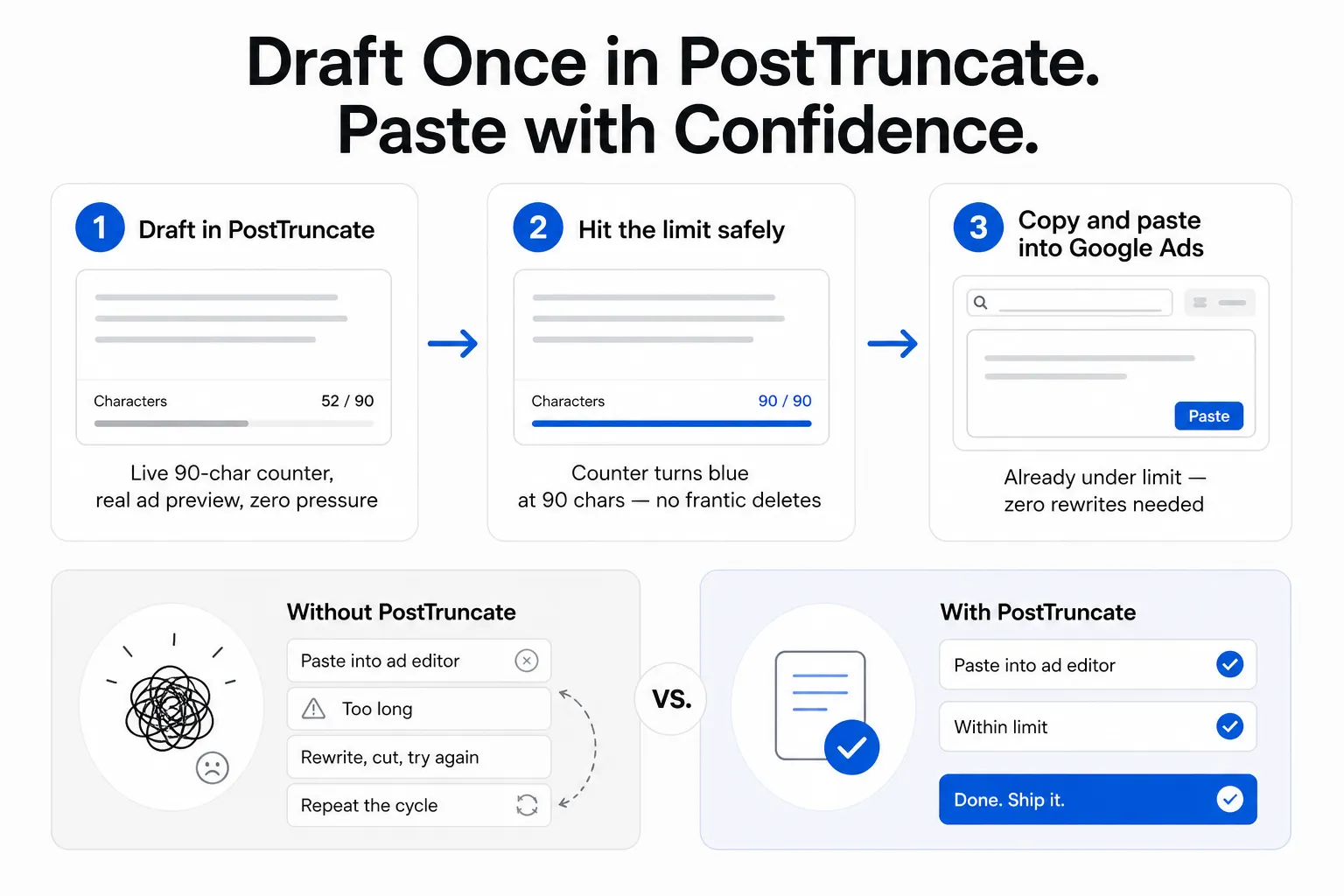
PostTruncate draft-here-paste-there workflow diagram showing three steps: draft in PostTruncate with live counter, hit the limit safely before going live, paste into Google Ads with zero rewrites needed
The difference between this and drafting directly in Google Ads isn’t just the panic avoidance. It’s that you’re doing creative work in a neutral environment where you’re not staring at the save button. When the stakes feel lower, the copy gets better.
For agency owners running multiple accounts, this changes the review workflow too: you can draft all four descriptions for a client’s RSA in PostTruncate, share the text with the client for review, and only enter the approved versions into the live dashboard. The live dashboard is for publishing, not for writing.
Here’s what the workspace looks like in practice:
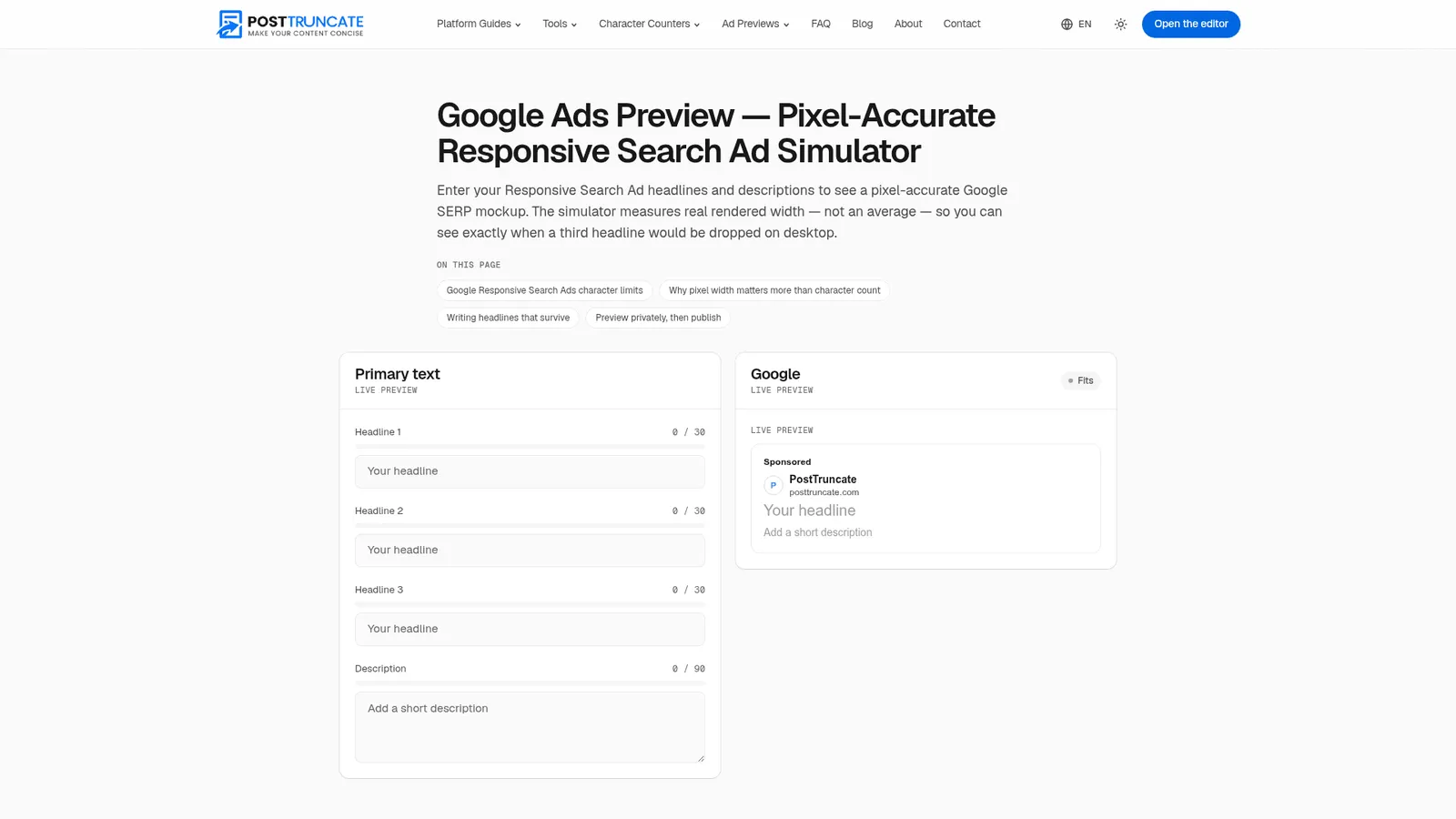
PostTruncate Google Ads character counter workspace showing real-time ad preview with 90-character limit
PostTruncate’s Google Ads simulator, as taken from PostTruncate
Everything runs in the browser. Your ad copy never leaves your device - no account, no upload, no server processing. The tool is supported by non-intrusive ads in reserved spaces that don’t shift the layout while you’re working.
If you write for multiple platforms, the main PostTruncate workspace also handles social media character limits - LinkedIn’s 210-character desktop fold, X’s 280-character hard cap, Instagram’s 125-character caption cutoff, and more - all with live previews from the same editor. The platform limits reference has the full breakdown.
The approach is the same across every platform, by the way: draft to the limit in a safe environment, then publish. The social media hooks guide walks through the same principle applied to feed-based content if you’re writing across channels.
Try PostTruncate
PostTruncate’s Google Ads Preview tool is the workspace I built after one too many frantic rewrites inside the live Google Ads dashboard. It enforces the 90-character description limit and 30-character headline limit live as you type, renders a pixel-accurate ad preview, and measures headline pixel width using an HTML5 canvas so you can see exactly when Google would drop a headline from the display container.
It’s free, runs entirely in your browser, and requires no sign-up.
If you’re writing your next batch of RSA descriptions - or if you’ve got a set that needs tightening against the 90-character formula - draft them in PostTruncate first. You’ll paste them into Google Ads knowing they’re ready.
FAQs
What is the character limit for Google Ads descriptions?
Each description in a Responsive Search Ad (RSA) is capped at exactly 90 characters, including spaces and punctuation. You can write up to 4 descriptions per RSA, and Google will display up to 2 at once in any combination. Draft all four - and check each one - using the PostTruncate Google Ads preview tool, which enforces the 90-character cap live as you type.
How do I fit a value prop, social proof, and CTA in 90 characters?
Use the 90-character formula: [Value Prop] (30-45 chars) + [Social Proof] (20-30 chars) + [CTA verb] (10-20 chars). For example: " Automate PPC reports in 60 sec. 1,200+ agencies trust us. Start free." - that's 70 characters and hits all three. The key is choosing power words that carry weight without filler. The PostTruncate character counter shows your live count as you draft, so you're never guessing.
What happens if my Google Ads description is over 90 characters?
Google Ads simply won't accept it - the field rejects any description that exceeds 90 characters. The problem is that the live Google Ads editor doesn't warn you as you type; it only flags the error when you try to save. This forces a frantic, mid-session rewrite that usually destroys carefully crafted copy. Drafting in PostTruncate's Google Ads simulator first means you hit the wall there - safely - not in the live dashboard.
What's the difference between headlines and descriptions in Google Ads?
Headlines (up to 30 characters each, up to 15 per RSA) appear at the top of the ad as the clickable title row. Descriptions (up to 90 characters each, up to 4 per RSA) appear below and carry most of the persuasive work - your benefit, your proof, your call to action. Google shows up to 3 headlines and 2 descriptions simultaneously, mixing and matching automatically. Both have firm character caps, and both benefit from previewing in PostTruncate's pixel-accurate simulator before you go live.
Is PostTruncate's Google Ads preview tool free?
Yes, completely free - no sign-up, no install, no credit card. The Google Ads Preview tool on PostTruncate enforces the 30-character headline cap and 90-character description cap live as you type, measures pixel width using an HTML5 canvas (so you can see exactly when a headline overflows the \~600px desktop container), and renders a real ad preview. Everything runs in your browser - nothing is uploaded or stored.



Join the discussion
Comments are reviewed before they appear, so yours won’t show up right away.